 GIF Crate
GIF Compressor
Make the file smaller. The picture gets rougher, width and height stay the same, and the file stays on your device.
Preview
Upload GIF
Tap or click to choose a GIF, or upload from a URL. You can also drop a file or paste.
Controls
This paper fan is the file the slider opens
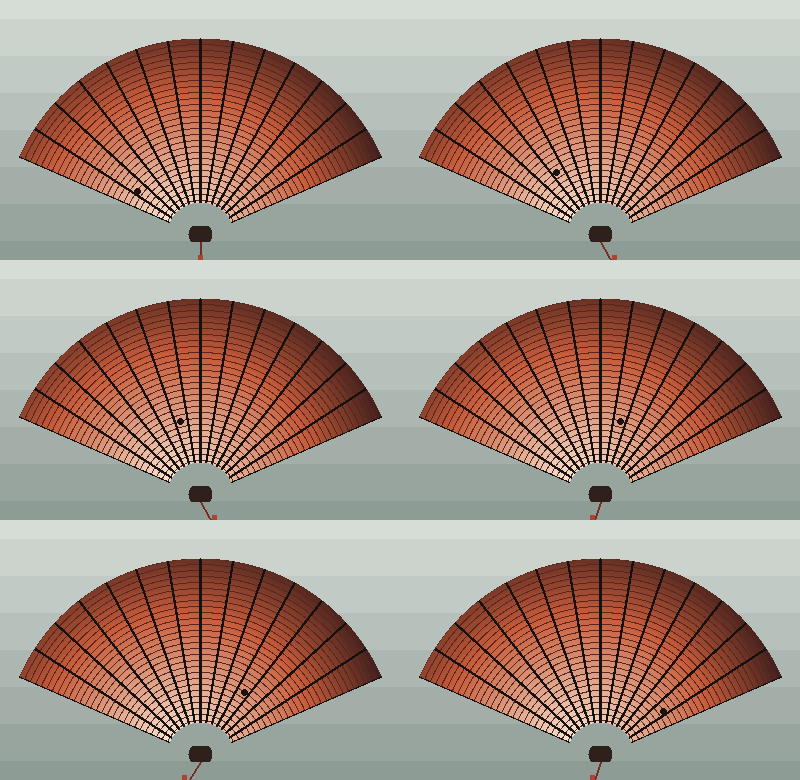
A lower file size keeps this loop and roughens the paper
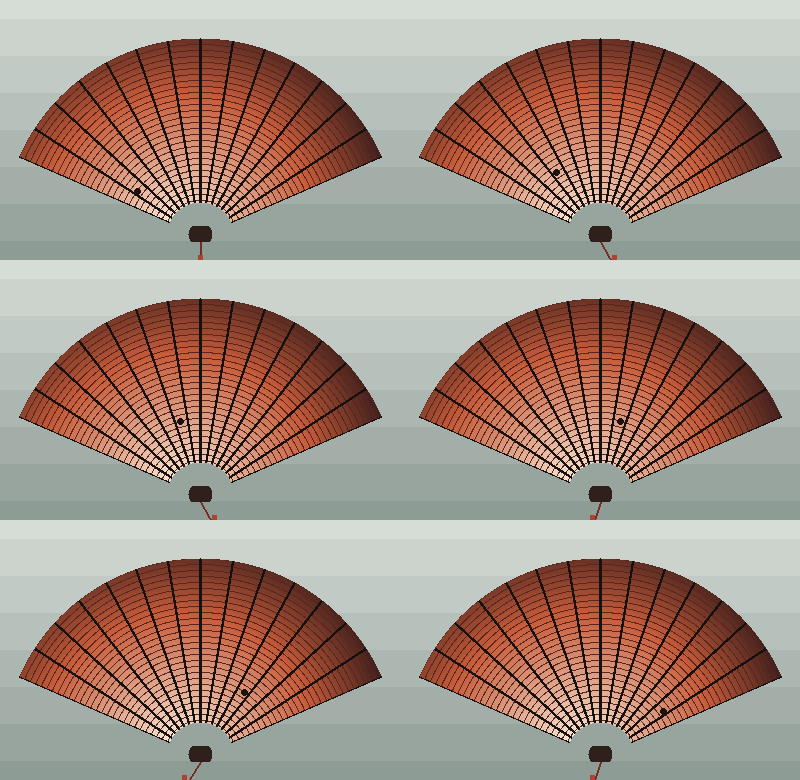
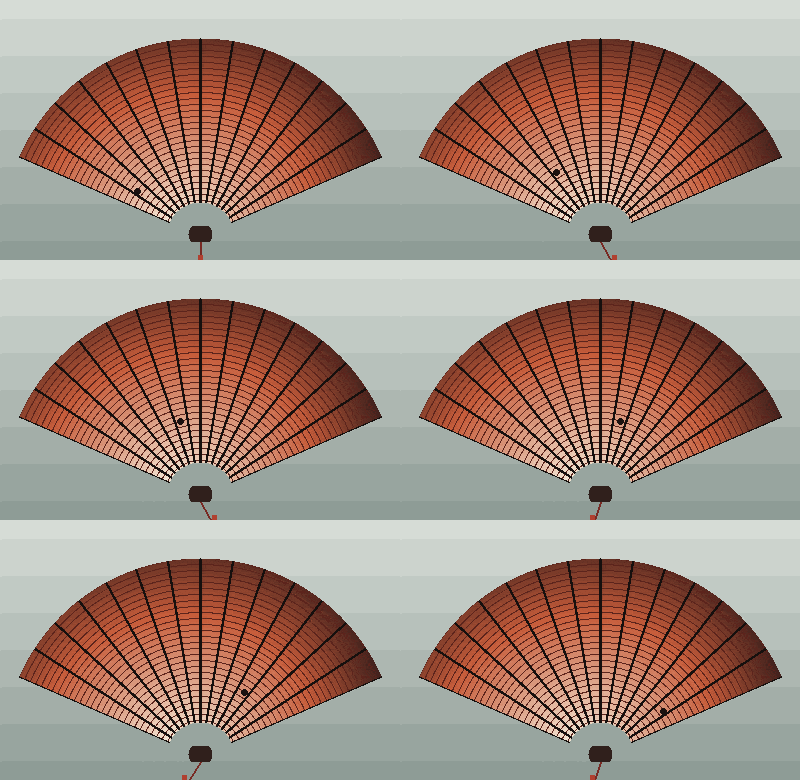
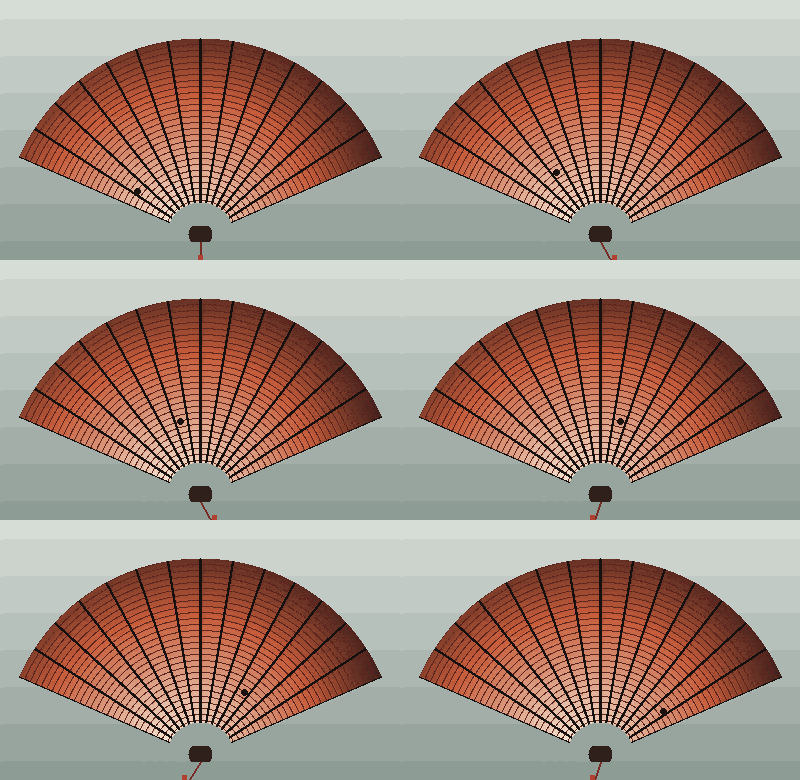
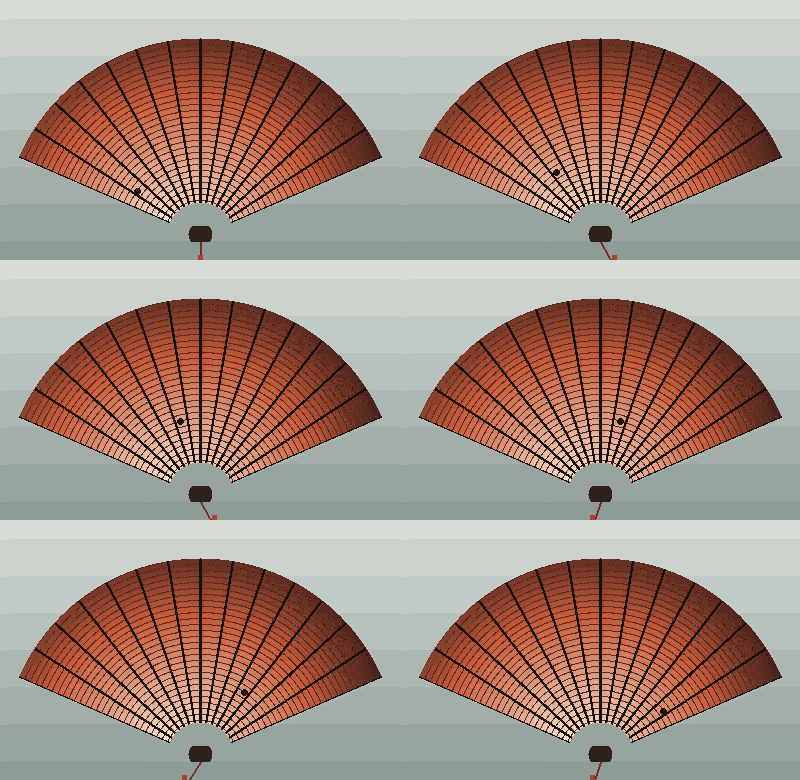
The ribs show the grain when that corner is drawn larger
Width and height stay 400 by 260
| File size | Command | Bytes | Picture |
|---|---|---|---|
| Opened | Opened as-is | 186,240 | 400 × 260 |
| 100 | -O1 | 28,167 | 400 × 260 |
| 70 | -O1 --lossy=60 | 22,626 | 400 × 260 |
| 40 | -O1 --lossy=120 | 21,720 | 400 × 260 |
| 0 | -O1 --lossy=200 | 21,124 | 400 × 260 |
Bytes are the size of each GIF on this page. The picture column is the width and height stored in the file. File size 100 already drops the opened 186,240 bytes to 28,167 by repacking. 70, 40, and 0 go further, and the picture column does not move.
Questions about a smaller GIF file
Does making the file smaller change the pixel size?
The width and the height stay at the size of the GIF you opened. On this fan that is 400 by 260 for the opened loop and for file size 100, 70, 40, and 0. Twelve frames stay twelve frames, each a tenth of a second. The slider spends its range on how those frames are stored.
Why does file size 100 still change the byte count?
100 skips the rough pass and only repacks the frames. The opened fan is 186,240 bytes. After that repack it is 28,167 bytes, and the fan still matches the loop you opened. A lower number on the slider goes further and lets the paper get grainy.
What does file size 0 do to the picture?
0 is the strongest setting on this slider. For this fan the pass is -O1 --lossy=200 and the file is 21,124 bytes. The loop keeps its frames and its timing. The picture picks up grain, easiest to see along the ribs when that corner is drawn larger.
How is this different from GIF Resizer and GIF Cropper?
GIF Resizer places a window that can crop or pad, and Zoom can change the saved pixel size. GIF Cropper cuts one rectangle out of the picture. GIF Compressor leaves the pixel size alone and uses the file size slider. A download from this tool ends in -compressed, and the GIF stays in the browser.